


How to make your Epson SureColor P800 Chipless - a step-by-step guide:

Ink Levels Before
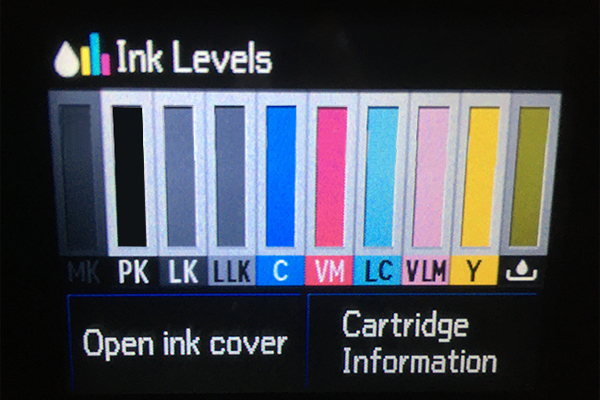
Ink Levels After
This may seem a little daunting, but its basically 3 stages:
Stage 1 = Preparation
Stage 2 =
Turn your Printer into Firmware Mode
Achieved by
downloading the firmware
Stage 3 =
Activate the downloaded firmware
At this stage you need to purchase the activation key.
done!
CHECKLIST: Before you start, you must have these three things:
1) A PC: A Mac will not work. The PC must have a windows operating system and USB cable - you only need this for the initial installation - you can borrow a friends if necessary.
(once installed, the printer will work with “chiplessly” with both MAC and PCs)
2) P800 Printer Driver Installed: If you have not got this already on the PC you are using, download the P800 printer driver from this link:
https://epson.com/Support/Printers/Professional-Imaging-Printers/SureColor-Series/Epson-SureColor-P800/s/SPT_SCP800SE
- Be sure to download the driver only, NOT THE COMBO PACKAGE
- Ensure no Epson processes are not running. To do this, hold down ctrl, alt and delete buttons and select the “task manager”. once opened, delete any Epson processes.
3) All cartridges without low ink warnings and the refill cartridges installed.
We recommend that you do not install the firmware with the Epson cartridges still in place. We recommend that the firmware be installed when the lowest ink level of a refill cartridge is no lower than 20% full.
==================== STAGE 1 - PREPERATION (STEPS 1 to 4) ==================================
STEP 1)
Turn on your PC that has a Windows operating system.
- Do not connect this to the P800 printer as yet.
STEP 2)
On this PC, go to https://www.chiplesssolutions.com/download.shtml
STEP 3)
Click on the blue “ download “ link for the “P800, P807, PX3V” row / “Download Firmware” column 
STEP 4)
You will then download this file: “P800_FWE283TL_OR18HC_OR99Z9.zip” -
Do not open this yet, Save this to your PC for later.

=========================== YOU HAVE NOW COMPLETED THE PREPERATION STAGE ===============
===== STAGE 2 - TURN PRINTER INTO FIRMWARE MODE & DOWNLOAD FIRMWARE (STEP 5 to 9) =============
STEP 5)
You now need to turn on the the printer in Firmware mode, here is how to do this…
- PRESS THE POWER BUTTON TO TURN THE PRINTER ON
THEN, IN THIS ORDER … PRESS AND HOLD THESE BUTTONS ON THE FRONT OF YOUR PRINTER
1st Cancel button (marked "1" in the photo below)
2nd Home button (marked "2" in the photo below)
3rd Power button (marked "3" in the photo below)
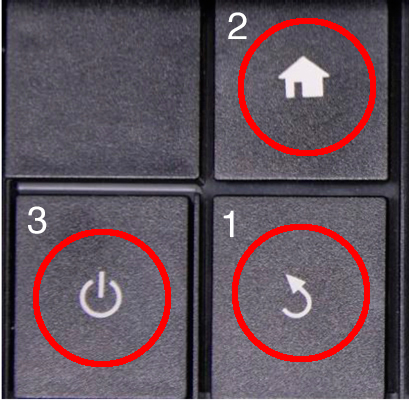
You will then have all three buttons held down - keep them held down ...
... Let go of the Cancel button after 5 seconds (marked "1" above) ...
... Keep the Home ("2") and Power button("3") held for a further 15 seconds until this appears on your LCD panel …
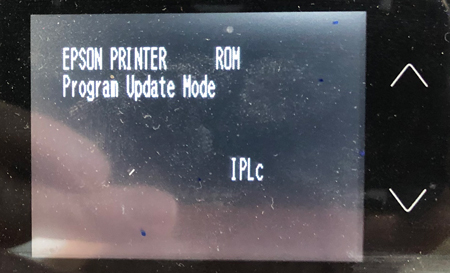
“EPSON PRINTER ROM PROGRAM UPDATE MODE - IPLC”
STEP 6)
If its not already, connect the PC to your Epson P800 via USB cable
STEP 7)
Open/unzip/extract this file “P800_FWE283TL_OR18HC_OR99Z9.zip” (Downloaded in step 3/4)
Once the above has been unzipped/extracted you will see this file “EPFWUPD.exe” that shows 3.7megabytes / 3,633KB (screen shot below)
Please open and run this file.

When you run this file, agree and click "next" to all screens until you view the dialogue box with the green bars appears as below:
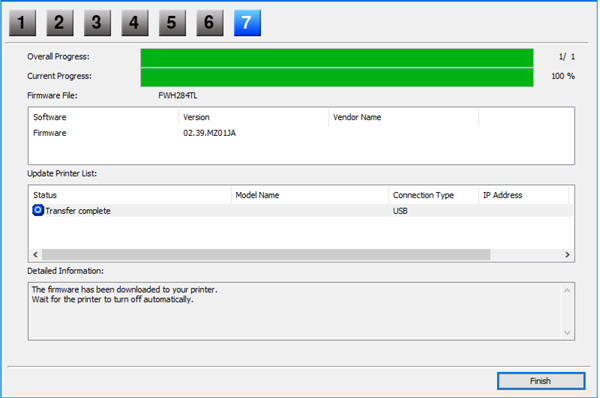
Once the green bars reach the end, click FINISH.
STEP 8)
Leave the printer blinking for around 2 minutes (the blue power button will be flashing)
After this time, you will see this message or the message below (both are correct) ...
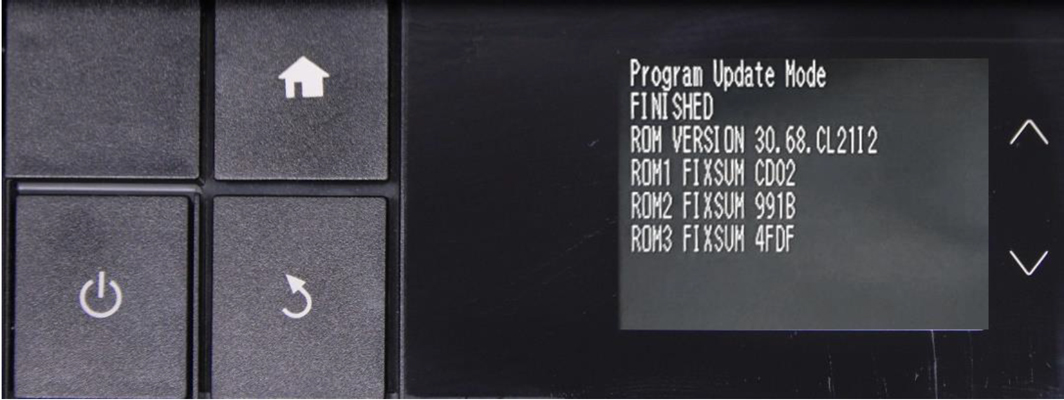
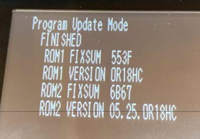
STEP 9)
Turn printer off.
========================= YOU HAVE NOW COMPLETED THE STAGE 2 ============================
===== STAGE 3 - PURCHASE ACTIVATION KEY & ACTIVATE FIRMARE (STEP 10 to 13) ======================
————————
AT THIS POINT YOU CAN BE CONFIDENT YOUR PRINTER CAN BE “CHIPLESS” - YOU CAN NOW PURCHASE THE ACTIVATION KEY
————————
STEP 10) Turn the printer on
Purchase the activation code ($50) from this link:
https://www.chiplesssolutions.com/download.shtml (Guide & Buy)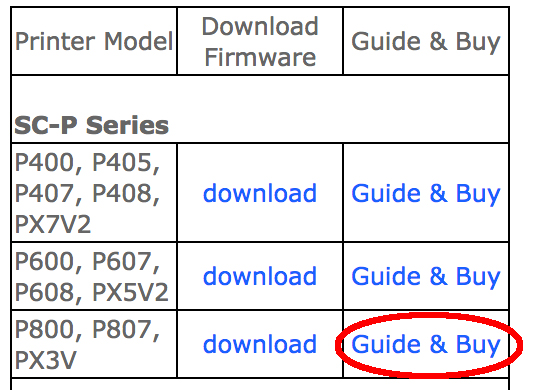
Download this file to your desktop so you know where this is.
STEP 11)
Download the licence by clicking here: License.exe utility (Password - 12345 )

Once the file unzipped/extracted you will see this file "license.exe”

This should be 4 Megabytes /4018KB- RUN LICENSE and CLICK OK
You may get a warning about this application, click "run anyway" if you do.
Step 12)
Once the licence screen appears, select your printer at the top of the screen.
Then press the "Activate Online" button on the right hand side.
A box called "input your activation code" will appear.
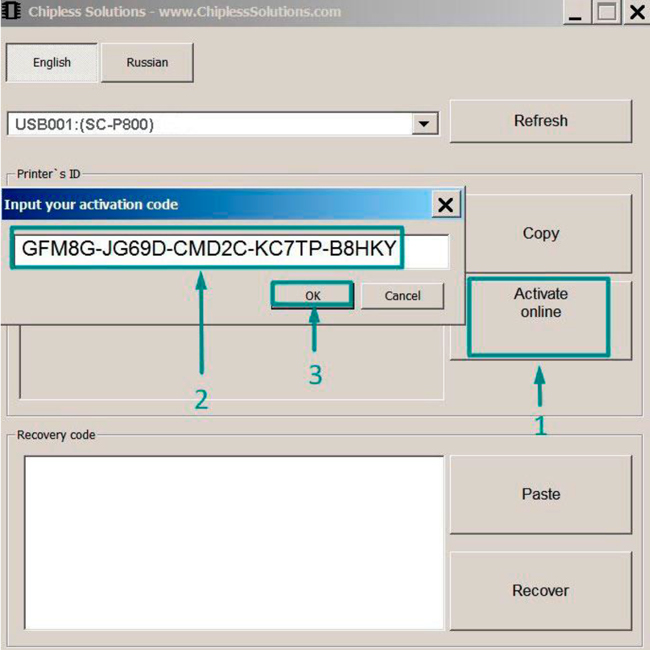
Copy and paste your activation key (from step 10), into this box (label "2" above)
An activation code has been written message will then appear as screenshot below
A recovery code will also appear in this box
(see below)
Copy and paste this recovery code into the same file as step 10 - keep this safe

It will be required if printer will update firmware from Epson server and You wish to restore Chipless Firmware in Your printer.
To restore chipless firmware – paste saved Code to Recovery Code window and Click Recover button.
Turn printer off
If the PC you are using is not the computer you are using to control the printer, you can now re-connect your printer to your main computer (Mac or PC)
YOUR PRINTER IS NOW CHIPLESS - PLEASE BE SURE TO READ THE ADVISRORIES BELOW ...
CLICK HERE FOR THE MARRUTT REFILL CARTRIDGE SYSTEM FOR THE EPSON P800
========== PURCHASE ACTIVATION KEY & ACTIVATE FIRMARE (STEP 10 to 13) - END ====================
Advisories:
1) Once successfully installed, your printer always reads ink levels as full. It is now imperative that you keep your cartridges topped up with ink - printing with an empty cartridge can cause issues.
Good practice
is to top up ALL your cartridges every two weeks (more frequent for high volume users) - Keeping the cartridges always above 50% full is recommended.
2) There is also now no notification of an empty waste tank. We recommend you check this at least every two months (more frequent for high volume users).
3) As in the checklist, all cartridges should be without low ink warnings and the refill cartridges should be installed.
We recommend that you do not install the firmware with the Epson cartridges still in place. We recommend that the firmware be installed when the lowest ink level of a refill cartridge is no lower than 20% full.
Disclaimers:
We are not connected with 2manuals… This is not our software. We will do our best to support this but we do not officially support this. The company where you purchased the firmware are chiefly responsible for support.
Please note that we are not associated with this company but customers have reported that the software does work and were pleased with the results. Installing this will void your warranty. We recommend installing this outside of this period.
 Hi guys, just a quick line to say a very big thank you for all your help today. Your patience and undoubted expertise in helping me achieve a clear set of print heads on my Epson P600 with the Magic Bullet Fluid, shows excellent Customer Service is not something I'd come to believe dead and buried in today''s world. Cheers!"


 USA & Canada
 UK & Europe